
Why Does My QR Code Look Blurry or Fail to Scan?
The poster proof comes back from the printer and the QR code in the corner looks like it went through a fax machine. Furry gray edges, soft corners. Your iPhone scans it on the third try; a colleague's Android won't scan it at all. The maddening part is that the code looked perfect on your monitor, and the printer swears they printed exactly what you sent.
They probably did. In most failed-print stories the damage was done much earlier, at the download button, when someone picked a file format that couldn't survive being scaled. The generator produced a flawless code; the format let it fall apart.
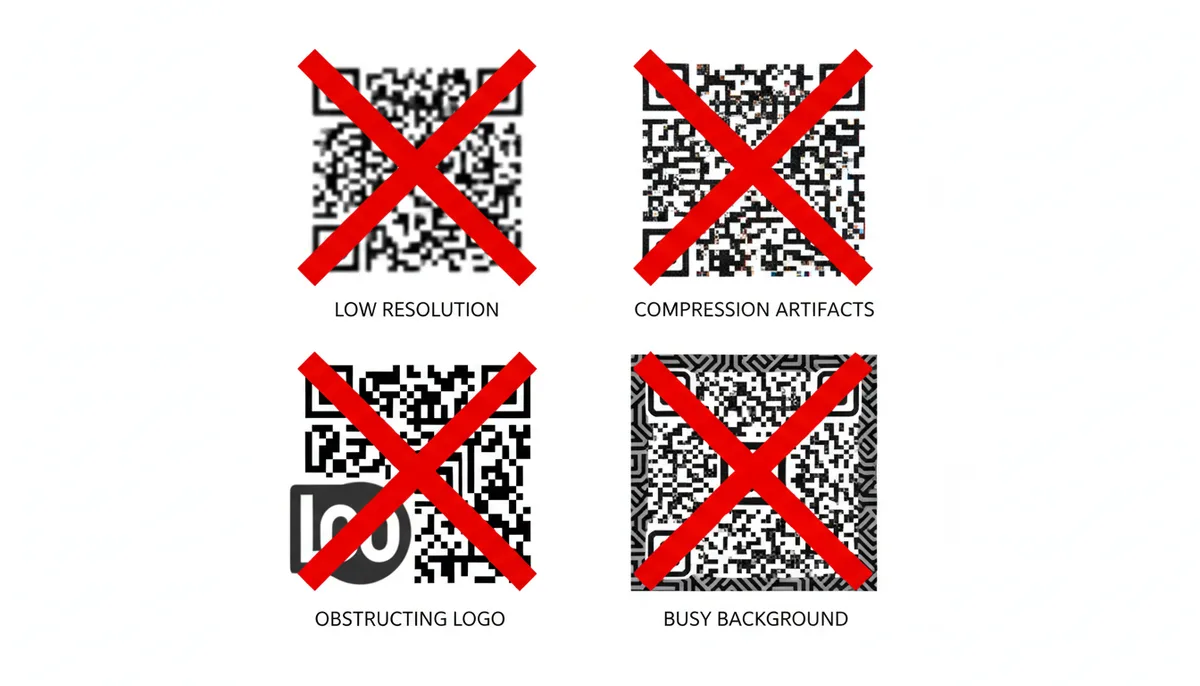
The stakes are higher for QR codes than for, say, a photo. A phone doesn't "look" at a code the way you do. It finds the three large squares in the corners, uses them to lay an imaginary grid over the image, then samples the middle of each grid cell to decide whether that module is black or white. Everything hinges on those samples landing cleanly. Blur the edges — by stretching a low-resolution image or saving with lossy compression — and the boundary between black and white modules shifts. Small codes, low light, or a steep scanning angle push a borderline image over the edge into unreadable.
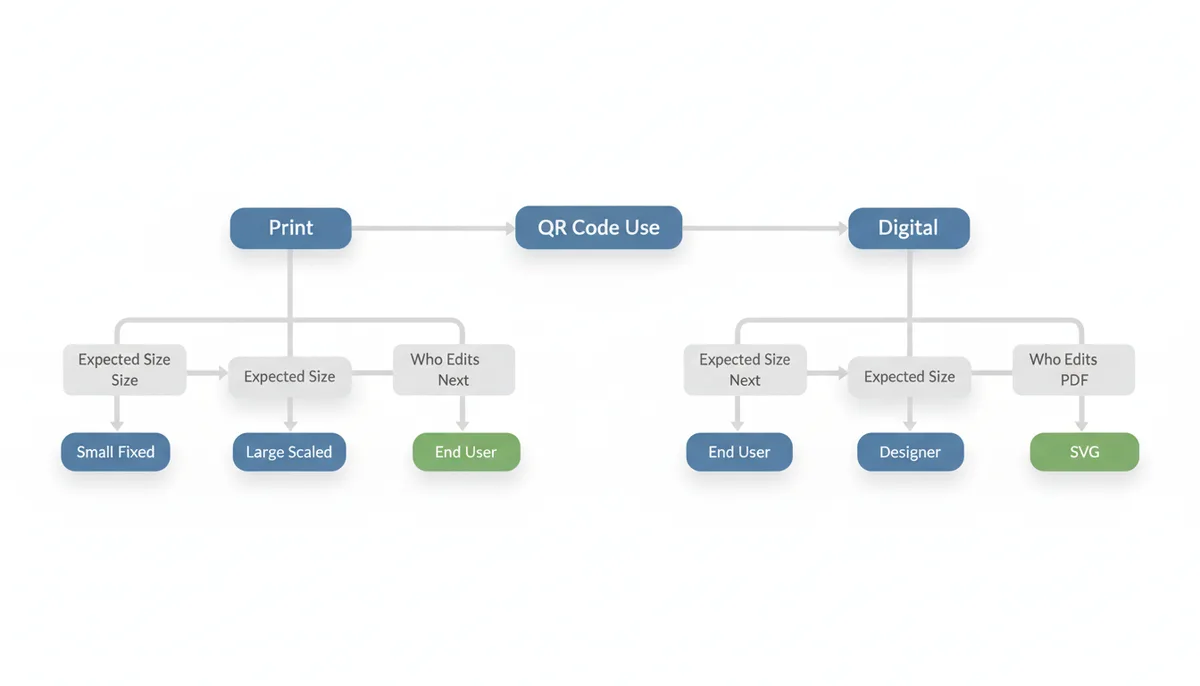
So the fix for a blurry QR code is rarely "print it again, sharper." It's "go back and download the right file." Choosing between the QR code file formats on offer — usually PNG, SVG, and PDF — comes down to three questions:
- Print or screen? Print demands far more resolution than any monitor, and it's where the wrong image type goes to die.
- Fixed size or scaled? A code that stays exactly as exported can survive as a PNG. A code that might be resized needs to be a vector.
- Who touches the file next? You, a designer, a print shop, a web developer — each works best with a different format.
Work through those three and the right answer is almost always obvious. The rest of this guide gives you the technical reasons behind each choice, exact workflows for common projects, and the checks to run before you approve a print run of 5,000.
What Is the Difference Between Raster and Vector Graphics?
Zoom into any PNG far enough and the picture dissolves into colored squares. That's what a raster image is: a fixed grid of pixels, with a stored color value for every square. A 1,000 × 1,000 pixel PNG contains exactly one million pixels of information — no more, no matter how nicely you ask.
At its native size, that's fine. The trouble starts when the output device needs more pixels than the file holds. Print a 1,000-pixel QR code one inch wide and the printer gets a dense, crisp grid. Stretch that same file across an eight-inch poster panel and the software has to invent the seven extra pixels between every real one. It guesses by averaging its neighbors — a process called interpolation — and every hard black-to-white edge becomes a soft gray ramp. On a billboard, the same file turns to soup.
The math here is simple and worth memorizing: maximum print width in inches = pixel width ÷ 300. The 300 is DPI — dots per inch — the density commercial printing expects for sharp output (its screen-world cousin is PPI, pixels per inch). A 1,200-pixel PNG tops out at four inches, about 10 cm. Beyond that, effective DPI drops and the fuzz creeps in.
Vector graphics store no pixels at all. An SVG file is a list of drawing instructions: put a black rectangle of this size at these coordinates, then another one here. When a printer or browser renders it, it redraws those instructions fresh at whatever resolution the device offers. Two centimeters on a business card or two meters on a trade-show banner — same file, mathematically sharp edges both times, because there's no fixed grid to run out of. The file stays tiny too; coordinates don't care how big the output is.
EPS and Adobe Illustrator's AI format are older members of the vector family you'll meet at print shops; SVG is the modern, open, web-friendly one. PNG, JPEG, GIF, and TIFF are all raster.
PDF sits in neither camp, which is why it causes confusion. A PDF is a container — a standardized page description that can hold vector paths, raster images, fonts, or all three at once. Two QR codes both delivered "as a PDF" can behave completely differently when enlarged: one stays razor sharp, the other pixelates, depending on what got embedded. A later section shows you how to tell them apart in five seconds.
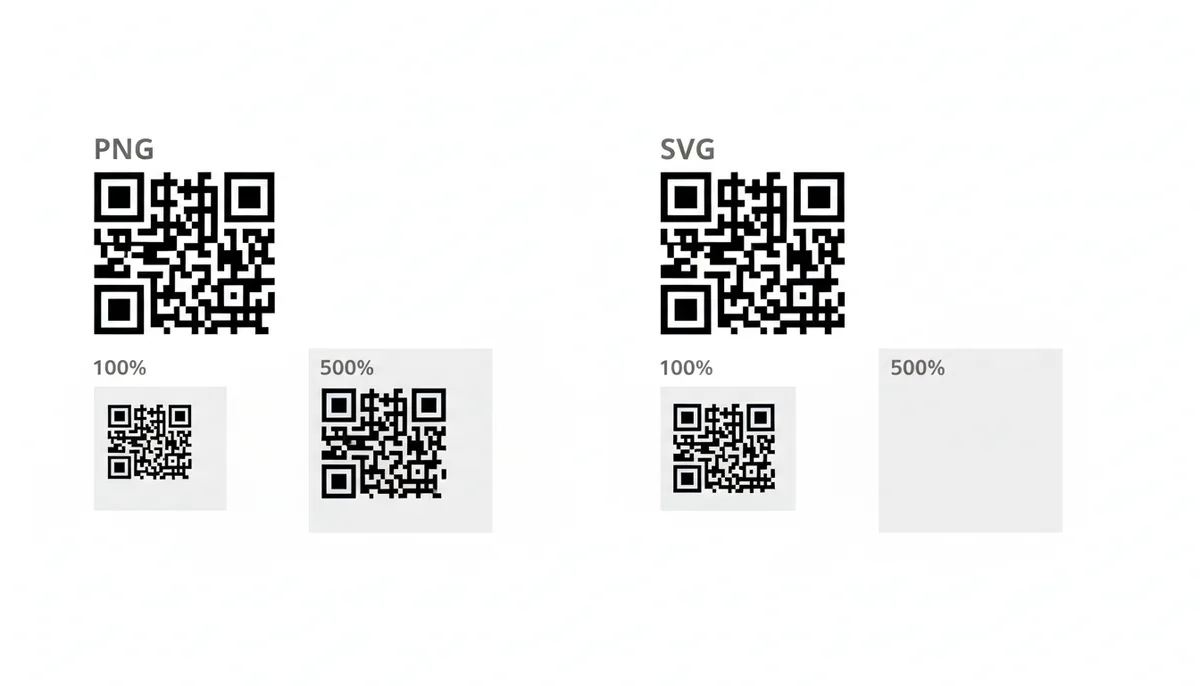
One more reason this matters so much for QR codes specifically: the module edges are the data. A blurry photo of a dog is still a dog. A blurry QR code is a corrupted file. Choosing vector removes an entire category of failure before it can happen.
When Should I Use a PNG for My QR Code?
For anything that lives on a screen at a size you control, PNG is the default, and it earns that position on three strengths.
Universal support. Every browser, every email client, every version of Word and PowerPoint, every CMS, every social platform, every video editor accepts PNG without complaint. When you hand someone a PNG, you will never get the "my software won't open this" email. That reliability is worth a lot on a deadline.
Lossless compression. PNG shrinks files without discarding a single pixel of information. The edges your generator drew are the edges in the file — no smearing, no artifacts. This is the crucial difference from JPEG, which gets its own warning later.
The alpha channel. PNG stores per-pixel transparency, so the code's background can be fully or partially see-through. That lets the code sit directly on a colored website footer, a photo, or a video frame without an ugly white box around it. Transparency doesn't remove the need for a quiet zone, though — the empty margin around the modules that scanners use to find the code. More on that in the mistakes section.
Sizing a PNG for screens works like this: decide how big the code will display, then export at roughly double that pixel count. High-density phone and laptop screens pack two or more physical pixels into every "CSS pixel," so a code that displays at 150 pixels square should be uploaded at around 300. Browsers are excellent at shrinking images down to fit; what they can't do is add detail that isn't there.
PNG can even survive print in one narrow case: small pieces at a size fixed in advance, exported with enough pixels to satisfy the 300 DPI math from the previous section. A 1,200-pixel PNG printed three inches wide is genuinely crisp. QR Code Machine offers high-resolution PNG downloads precisely so this headroom exists — export generously large and let the layout software scale down, never up.
Where PNG fails is any situation involving enlargement. The file has a hard ceiling — its pixel count — and every designer, sign shop, or office worker who drags a corner handle past that ceiling degrades the code a little further. Two more traps to avoid: screenshots, which capture at screen density (roughly a quarter of what print wants) and often get slightly blurred by the operating system's display scaling, and careless re-saves, where someone shrinks the PNG for email and the large version is lost forever.
My rule: PNG only when you know the exact final size, nobody downstream will resize it, and the destination is a screen. If any of those three is uncertain, read on.
Why Is SVG the Professional's Choice for QR Codes?
Ask a print shop or a designer which QR code format they want and the answer is nearly always the same: "Do you have a vector?" SVG — Scalable Vector Graphics — is that vector, and for any professional use it should be your default download. Four reasons.
It scales forever. The same SVG file works at 2 cm on a business card and 20 m on a building wrap. There is no resolution to run out of, no DPI math to do, no "is it big enough?" conversation with the printer. Ever.
The files are tiny. A QR code SVG is a short list of coordinates — typically a handful of kilobytes, and it stays that size whether you're printing a sticker or a billboard. Compare that with the absurd pixel dimensions a raster billboard would need; there's a worked example in the project section.
You can edit it. An SVG is plain text written in XML — you could open it in Notepad and read the drawing instructions. More usefully, it opens as live, editable artwork in Adobe Illustrator, Figma, Affinity Designer, or the free Inkscape. That's what makes a vector QR code the right starting point for real design work.
It stays sharp on every screen. Embedded in a web page, an SVG renders crisply at any display density automatically — no 2× export trick required.
A typical editing workflow looks like this:
- Download the SVG from your generator and keep one untouched copy as your master.
- Open a copy in Illustrator, Figma, or Inkscape and select the dark modules — usually a single path or a tidy group.
- Change the fill to a brand color. Keep it dark: scanners read contrast, so deep navy on white works and pale mint does not.
- For print jobs, convert the color setup from RGB (screen color) to CMYK (print ink) right there in the design app — your printer will ask for this.
- Export whatever the next tool needs: a placed vector in a layout, or PNGs at exact sizes for the web. The master SVG stays pristine.
Two editing rules matter more than the rest. Never stretch the code non-proportionally — the grid of equal squares is the encoding system, and squashing it corrupts the data. And leave the quiet zone intact. Designers love to crop tight; scanners hate it.
Now the honest drawbacks, because SVG isn't right everywhere. Email is the big one: Gmail and most Outlook versions strip or refuse to render SVG images, so an SVG in an email signature or newsletter is simply broken for most recipients. Microsoft Office is friendlier but version-dependent: Microsoft 365 and Office 2019 or later generally insert SVGs directly and keep them sharp on screen and in projected slides, while older Office versions can't handle the format at all and need a PNG instead. WordPress and some other CMSs block SVG uploads by default, because the XML can carry scripts — a legitimate security caution, even if plugins and modern setups often work around it. And some online portals, from print-on-demand uploaders to social platforms, reject SVG files outright.
None of that changes the core advice. Keep the SVG as your master, because converting SVG to PNG at any size is clean and instant, while PNG to SVG is not a real conversion (the FAQ explains why). When a picky portal demands raster, export a fresh, generously sized PNG from the master. That one-way door is exactly why the vector belongs at the top of your file hierarchy.
Is a PDF the Right Format for My QR Code?
First, understand what you're holding. A PDF isn't an image format — it's a finished page in a standardized envelope. That envelope might contain a crisp vector QR code, a fuzzy raster one, or an entire designed flyer with the code placed on it. The file extension alone tells you nothing about quality, which is why "just send me a PDF" causes so many quiet disasters.
In practice, QR-related PDFs come in two species. The first is a print-ready document: the code already placed on a page — a table tent, a counter sign, an A4 poster — at the intended physical size, with margins and layout locked in. The second is an asset PDF carrying just the code itself, usually as embedded vector art, meant to be placed into other layouts.
The print-ready species is where PDF genuinely shines. Commercial printers have standardized on PDF (often the print-tuned PDF/X variant) because it preserves the exact page: fonts embedded, sizes fixed, nothing reflows between your screen and their press. A code specified at 5 cm wide prints at 5 cm wide, which matters when you're trying to hit a minimum scanning size. Online print portals ask for PDF for the same reason, and PDFs are ideal for approvals and archiving — anyone can open one, and what they see is what prints.
The asset species is where people go wrong. Using a PDF as the middleman — the file you paste into other designs — creates friction everywhere outside professional layout tools. Adobe InDesign and Illustrator place PDFs and preserve the vector content happily. Office apps, by contrast, handle PDFs clumsily at best: Word tries to convert them into editable documents, and PowerPoint has no clean way to place one as a graphic. Plenty of online tools quietly rasterize any PDF you upload, turning your sharp vector into a fixed grid of pixels. If your plan is "design around the code," start from the SVG and let the design software export the final PDF. The SVG is the ingredient; the PDF is the plated dish.
Because a PDF can hide either kind of content, learn the five-second check before you trust one: open the file and zoom in hard, 800% or more. Edges that stay razor sharp mean vector art inside; edges that soften into gray steps mean a raster image wearing a PDF costume. Run this test on anything a colleague or printer sends back — especially files that have been exported, re-exported, or "optimized" along the way.
PNG vs. SVG vs. PDF: Which QR Code Format Wins?
Enough theory — here's the head-to-head on the attributes that actually decide real jobs.
| Attribute | PNG | SVG | |
|---|---|---|---|
| File type | Raster (fixed pixel grid) | Vector (math instructions) | Container — holds either |
| Scales up cleanly | No — pixelates past native size | Yes — any size, card to billboard | Only when vector art inside |
| Best print use | Small fixed-size pieces at 300+ DPI | Every print job, any scale | Finished print-ready documents |
| Best digital use | Email, websites, social, video overlays | Web pages and design handoff | Proofs, approvals, archiving |
| Editable in design apps | Limited — recoloring degrades pixels | Full — colors, shapes, CMYK | Editable only if vector inside |
| Transparency support | Yes — full alpha channel | Yes | Yes, if the embedded art has it |
| Typical QR file size | Roughly 10–60 KB at 1,000 px | Roughly 2–8 KB at any output size | 20 KB to several MB, layout dependent |
Crown the winners by category:
- Best QR code format for print: SVG. Size stops being a question entirely.
- Winner for web and email: PNG. Universal support plus transparency.
- Winner for sending finished artwork to a printer: PDF — ideally built by design software from your SVG.
- Winner for editing and rebranding: SVG, and it isn't close.
- If you can only keep one file: SVG. You can always export a PNG at any size from a vector master; the reverse path doesn't really exist.
And a word on the format that loses every category. JPEG compresses by discarding detail, and its characteristic failure is "ringing" — faint gray ghost pixels clustered around hard black-to-white edges, exactly where a QR code is most fragile. Remember how the decoder samples module centers and thresholds them into black or white: JPEG artifacts drag those samples the wrong way, especially at small sizes, and heavy compression can merge adjacent modules outright. JPEG also has no transparency at all. If a tool only offers JPEG, treat that as a signal to regenerate the code from a proper generator instead. And never rescue a JPEG by re-saving it as PNG — conversion preserves the damage permanently. The same warning applies to screenshots, which add low screen resolution to the problem.
How Do I Choose the Right Format for My Project?
Abstract rules are nice; Tuesday's deadline is nicer. The decision reduces to the three questions from the opening — print or screen, fixed size or scaled, who touches the file next — and the flowchart below maps them. But most people meet this decision as a specific project, so here's what I'd send for each of the common ones, and why.
Business card — SVG to the designer. A QR code for a business card gets placed into Illustrator or InDesign alongside the rest of the artwork and stays vector all the way into the print PDF. If an online card printer's uploader only accepts PNG, do the math: a one-inch code needs at least 300 pixels, so upload a 1,000–1,200 pixel PNG and never enlarge it inside their tool.
Restaurant menu — SVG or PDF, plus a dynamic code. Designing the table tent yourself? Place the SVG. Sending it to a print shop? They'll want the finished PDF. Either way, make the code itself dynamic: with QR Code Machine's dynamic QR codes, the printed pattern points to a redirect you control, so when the menu changes next month you update the link instead of reprinting two hundred tents. Format choice is unaffected — dynamic codes download as SVG and PNG like any other.
Billboard, banner, or vehicle wrap — SVG, no debate. A QR code for a billboard illustrates why vector exists. Even at a modest 150 DPI, a code spanning three meters would need roughly 18,000 pixels per side as a raster — absurd for a generator download. The SVG hands the sign shop clean geometry they can scale to meters in one step. Size the printed code by viewing distance: a widely used rule of thumb is a 10:1 ratio, so a code scanned from two meters away should be at least 20 cm wide, and a parking-lot billboard needs a code measured in fractions of a meter, not centimeters.
Website footer or blog — PNG, or SVG if your stack allows it. A QR code for a website in a fixed display slot is PNG's home turf: export at double the display size and you're done. If your CMS and theme handle SVG safely, the vector version stays crisper on high-density screens — but don't fight your platform's security settings over it. At footer size, the difference is modest.
Email signature or newsletter — PNG, small. This is the one place SVG is flat-out wrong: Gmail and most Outlook versions won't render it. Use a compact PNG — 200 to 300 pixels is plenty for a signature — and move on.
PowerPoint or Word — PNG for safety, SVG on modern Office. Microsoft 365 and Office 2019 or later insert SVGs and keep them sharp when projected; anything older needs a PNG. Either way, insert the file rather than pasting a screenshot, and resize only with the corner handles so the aspect ratio stays locked.
Event poster or flyer via a print shop — SVG in, PDF out. You or your designer places the SVG into the layout; the design software exports the print-ready PDF the shop actually wants. Building the piece yourself in an online design tool? Check what it accepts first — some tools restrict SVG uploads to paid tiers or refuse them outright, in which case a large PNG of 1,200 pixels or more is the fallback.
Product packaging — SVG to the packaging designer. Packaging codes are often printed small and converted to CMYK, and both of those punish raster files. The designer needs the vector to hit the dieline and ink requirements.
What Are the Most Common File Format Mistakes to Avoid?
Every failed QR campaign I've seen traces back to a short list of errors. Here's the list, what each one costs, and the check that catches it.
1. Stretching a low-resolution PNG across a large print. The classic. A 500-pixel code that looked fine in the email draft gets dropped onto a banner, and the first proof scan fails under showroom lighting. The consequence is rarely just a reprint fee — it's the event deadline the reprint misses. The check: pixels ÷ 300 = maximum inches. Do it before the file leaves your hands.
2. Saving the code as a JPEG — or worse, screenshotting it. JPEG compression scatters gray artifacts along every module edge, and a screenshot combines low screen resolution with the operating system's display scaling. Both produce codes that work on your desk and fail in the real world. Re-downloading the proper file from the generator takes thirty seconds.
3. Cropping or crowding the quiet zone. The QR specification (ISO/IEC 18004) requires an empty margin four modules wide on all four sides — the quiet zone. It's not decorative padding; it's how the scanner sees where the code begins. Designers crop it for aesthetics or run background art right up to the modules, and scan rates fall off a cliff. Keep the margin, and on dark or busy backgrounds give the code a solid light plate to sit on.
4. Letting a logo eat the code. QR codes include error correction — at the highest level, H, the code can still be read with roughly 30% of its data obscured — which is exactly the headroom that makes logo embedding possible. But the three large corner squares and the smaller alignment patterns are how the reader finds and squares up the grid; cover those and no error correction level will save you. Keep any logo centered and modest, stay clear of the corners, and test on multiple phones.
5. Contrast crimes. A pale-gray code on white because it "matches the palette," or an inverted white-on-black code because it looked sleek in the mockup. Scanners threshold on luminance, and many readers struggle badly with inverted or low-contrast codes. Dark modules on a light background, always. Brand colors are fine when they're dark enough — deep navy or forest green on white scans reliably.
6. Squashing the code in Office. Dragging a side handle instead of a corner handle turns square modules into rectangles, and the grid geometry is the encoding. Lock the aspect ratio before you resize.
Before any print run, run this pre-flight:
- Check the PNG's pixel dimensions (right-click → Properties or Get Info) against the print-size math.
- Open the SVG in a web browser and zoom in repeatedly — genuine vector art stays sharp forever; if it pixelates, the file isn't what you thought.
- Zoom any PDF to 800% or more for the same reason.
- Print one physical proof at final size and scan it with at least one iPhone and one Android, from the real distance, in the real lighting.
- If the code is dynamic, scan it after every destination change to confirm the redirect.
Twenty minutes of these checks costs less than one reprint — and far less than a venue full of attendees pointing phones at a poster that will never respond.
The Rule Worth Memorizing
Strip everything else away and the whole decision fits in one sentence: SVG for anything printed or resized, PNG for screens and email, PDF when the file itself is the finished document headed to a printer. When a tool demands raster, export the PNG from your SVG master at the size you need — that direction is clean, and the other direction is a myth.
The practical habit: generate the code once and keep all three formats in the project folder. QR Code Machine exports PNG, SVG, and PDF from the same code, so there's no reason to pick just one and regret it later. Hand each collaborator the format their tools want, and run the proof scan before anything goes to print.
Frequently Asked Questions
What about JPEG for QR codes? My software offers it as an option.
Decline it. JPEG's lossy compression saves space by throwing away detail, and the artifacts concentrate precisely where QR codes are most fragile — along the hard black-to-white edges the scanner samples to read each module. The result is a faint gray ringing that nudges borderline readings the wrong way, especially on small codes or in dim light, and heavy compression can merge adjacent modules into unreadable mush. JPEG also stores no transparency. Use PNG for digital and SVG for print; both preserve edges exactly. If a tool hands you a JPEG, don't convert it to PNG and call it fixed — conversion keeps the damage. Go back to the source and export the right format.
Can I just convert a PNG file to an SVG to make it scalable?
No. A straight conversion wraps the same fixed grid of pixels in a vector-shaped container; the resolution ceiling travels with it, and the "SVG" blurs at exactly the same size the PNG did. Tracing tools — Illustrator's Image Trace, Inkscape's Trace Bitmap — can rebuild genuine vector paths from a very large, clean PNG, but they sometimes round or shift modules, and a shifted module is a wrong digit. If you must trace, treat it as emergency surgery and scan-test the result aggressively. The reliable path is far easier: go back to your generator and download a true SVG, drawn as paths from the start.
Does the file format affect whether my QR code is static or dynamic?
No — the two choices are completely independent. Static versus dynamic is about the data encoded in the pattern: a static code stores the final content directly, while a dynamic code stores a short redirect address you can repoint later from a dashboard. PNG, SVG, and PDF are just pictures of whichever pattern got made, so a dynamic code downloads as any of them, identically. Pick static or dynamic based on whether the destination might ever change after printing; pick the file format based on where the image is going. A dynamic code saved as SVG gives you both kinds of future-proofing.
What's the minimum size or resolution for a printable QR code?
Use a vector format — SVG or a vector-based PDF — and resolution stops being a question at all; the file scales to any size perfectly. Then the only number that matters is physical size. For arm's-length scanning, keep the code at least about 2 cm (0.8 in) square; for distance scanning, a common rule of thumb is a code width of roughly one tenth of the scanning distance. If you're stuck with PNG, the formula is pixels ÷ 300 = maximum print inches: a one-inch business-card code needs at least 300 pixels, but exporting 1,000–1,200 pixels costs nothing and buys headroom. Whatever the math says, print one proof and scan it with real phones.
My printer requires files in CMYK. Which format should I use?
Send the job through the SVG. Open it in Adobe Illustrator or Affinity Designer, switch the color setup from RGB (screen color) to CMYK (print ink), and place or export from there — the code stays vector the whole way. It's worth asking the printer whether they'd like the code in 100% black, the K plate only: single-plate printing can't suffer the slight plate-to-plate misregistration that softens fine detail in multi-color builds, which is why many printers prefer small codes in pure black. A PNG can't do any of this cleanly — it's raster and RGB-bound, so even a CMYK conversion in Photoshop leaves you with fixed pixels.
How do I put a QR code on a video?
Use a PNG with a transparent background. Video editors — Premiere, Final Cut, Resolve, CapCut — treat it as a still graphic you overlay on the footage, and the alpha channel lets it sit on the picture without a white box. Keep a light plate or a calm area of footage behind it so the quiet zone and contrast survive. Three practical rules: hold the code on screen for several seconds, because viewers need time to notice it, grab a phone, and aim; size it for a TV across the room, not for your editing monitor; and test by pausing the exported video and scanning from the distance your audience will actually watch.
Sources
- International Organization for Standardization (ISO) — The technical specification for QR codes is ISO/IEC 18004. This source backs claims about the fundamental structure of a QR code, including elements like the quiet zone and error correction levels.
- W3C (World Wide Web Consortium) — The official specifications for the SVG format. This backs all claims about how SVGs work, their scalability, and their definition as an XML-based vector image format.
- Adobe Creative Cloud — Adobe's help and learning documents provide authoritative information on the differences between vector (Illustrator) and raster (Photoshop) and the proper use of file formats like PDF, SVG, and PNG in professional design workflows.
- Canva Help Center — Provides practical, real-world guidance on which file formats are best for different print and web projects, backing the scenario-based recommendations in the article.