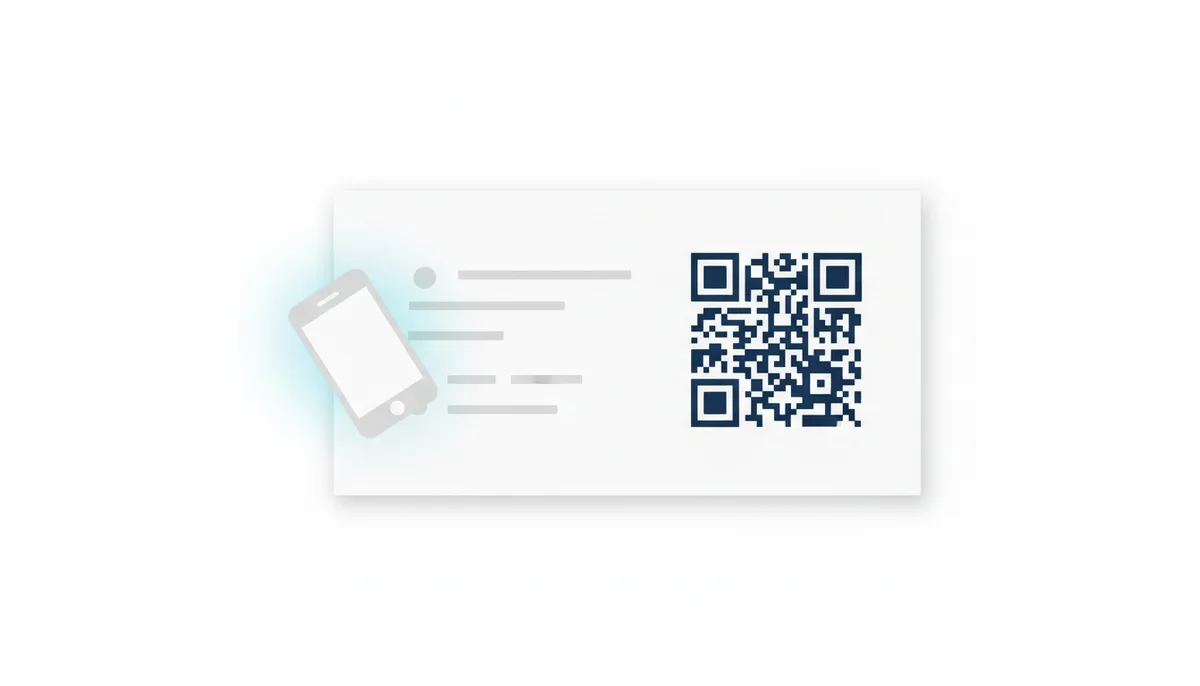
Why Is a vCard QR Code a Modern Business Card Essential?
Last month, I handed out business cards at an industry meetup. The next day, a contact texted me saying they couldn’t find my number—they’d typed the phone field wrong and missed the country code. That’s the exact friction a vCard QR code eliminates. When someone scans it, they don’t have to type anything. Their phone pulls pre-filled contact data directly into their address book, no typos, no missing digits.
It also bridges the gap between a quick handshake and follow-up. A potential client or collaborator can save your info while still talking to you, instead of waiting until they get home and forgetting half the details. And it sends a clear signal: you’re not stuck in 2015. You value efficiency, and you respect the other person’s time. No more fumbling for pens or squinting at tiny text on a card.
How Does a vCard QR Code Work?
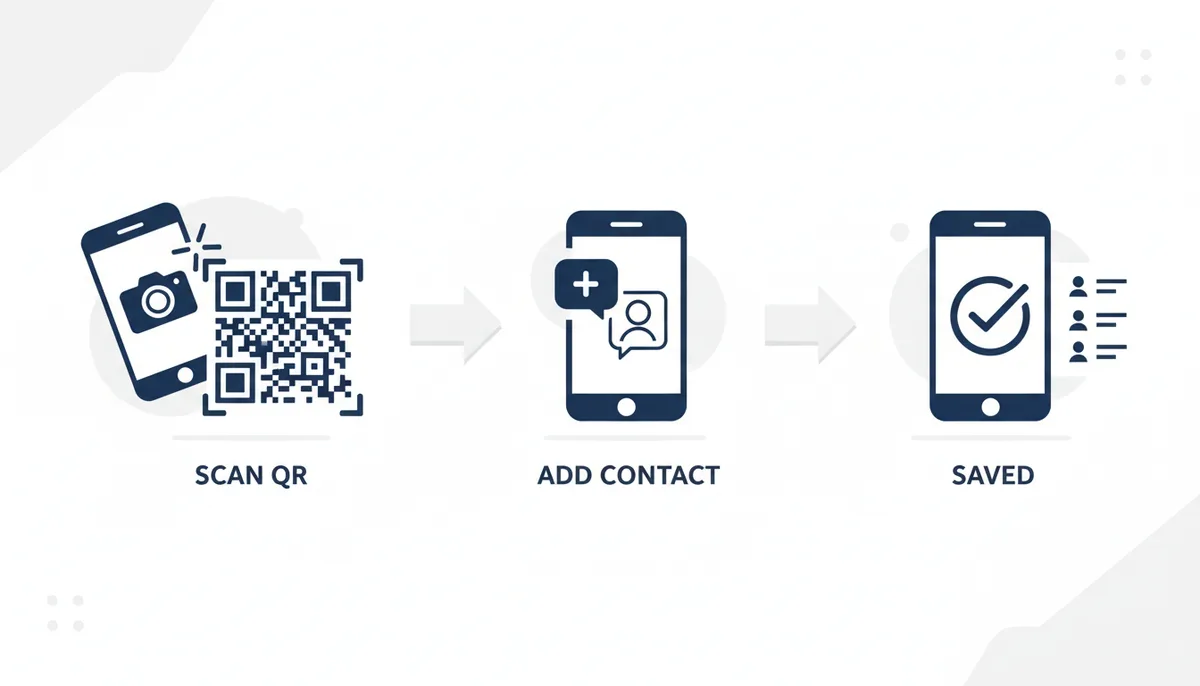
A vCard QR code is a visual pattern that encodes data formatted to the vCard standard, defined by RFC 6350. That data is simple text—your name, phone number, email, etc.—structured so smartphones recognize it as a contact entry. When someone points their native camera at the code, their device scans the pattern, pulls the text, and triggers a prompt: “Add [Your Name] to Contacts.”
The QR pattern is just a way to wrap text into something scannable by a phone’s camera; the data inside is what matters. If you change the data later, you either re-encode it into a new static code or use a dynamic one that points to an updateable source. The QR code’s basic principles and capabilities are documented by its inventor and maintainers, which explains why the format is robust and widely supported.
Static vs. Dynamic: Which vCard QR Code Is Right for You?
Before you make a code, pick between static and dynamic. Each has clear trade-offs for business use:
| Attribute | Static QR Code | Dynamic QR Code |
|---|---|---|
| Editability | Never changes once encoded. The data is part of the pattern itself. | You can update the contact info anytime, without modifying the QR pattern or reprinting the card. |
| Scan Analytics | No built-in tracking. You have no way to know who scanned it, when, or from where. | Tracks scans: count, time, approximate location, and device type. Useful for measuring event ROI or lead follow-up. |
| Cost | Free to generate with most online tools, no recurring fees for the code itself. | Requires a paid plan for the generator to host the redirect and analytics; free tiers usually limit scans or features. |
| Lifespan | Permanent as long as the physical card exists. No expiration so long as the printed code is intact. | Works only while the dynamic link is active. If your subscription lapses or the host goes down, the code stops working. |
| Complexity (Density) | Higher data volume makes the pattern denser because the full vCard data is encoded directly. That is harder to scan at small sizes. | Data is stored on a short URL, so the QR pattern stays simple even with many contact fields, making it easier to scan at smaller sizes. |
For business cards, choose dynamic unless you’re doing a one-off print and never plan to update your info. The risk of a typo (like a wrong LinkedIn URL) or a job change making your old number obsolete makes dynamic worth the small subscription cost.
Strategizing Your vCard: What Contact Information Should You Include?
The biggest mistake people make is cramming every possible field into their vCard. That makes the code denser, harder to scan, and clutters the contact entry for the person saving it. Follow the “less is more” rule: only include fields that help someone reach you for your specific role.
| Field Name | Recommended/Optional | Pro Tip |
|---|---|---|
| Full Name | Recommended | Use your exact professional name (no nicknames) to avoid confusion. |
| Job Title | Recommended | Include specific details (e.g., “Senior Marketing Manager” not just “Marketing”) to clarify your role. |
| Company | Recommended | Add your full company name to tie your contact to your business. |
| Work Email | Recommended | Use your business email, not a personal one, for professionalism. |
| Mobile Phone | Recommended | Use the international format (+1-555-555-5555 for US numbers) to ensure it works for global contacts. |
| LinkedIn Profile URL | Recommended | Link directly to your public LinkedIn profile so people can connect easily after the meeting. |
| Work Website | Optional | Only include if your website is relevant to your work (e.g., a portfolio for designers). |
| Notes Field | Optional | Add a quick context line like “Met at 2024 Tech Summit” to help your new contact remember where you met. |
| Professional Headshot | Optional | Only possible with dynamic codes: link to a hosted photo, not embedded directly in the QR pattern. |
Skip fields like home address, fax numbers, or personal social media unless they’re critical to your business. Too much data makes the code harder to scan, and no one wants a cluttered contact entry in their phone.
Step-by-Step: How to Create and Customize Your vCard QR Code
QR Code Machine is a trusted free tool for this, with all the options you need to build a functional vCard QR code for business cards. Let’s walk through exactly what to do:
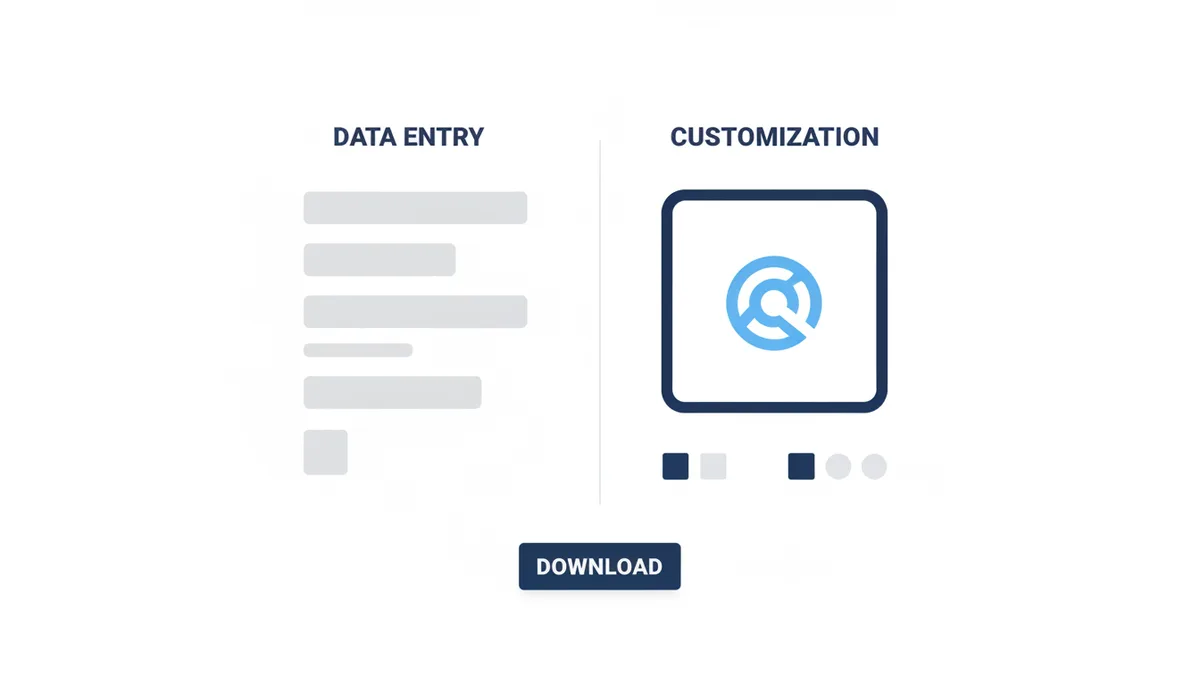
- Go to QR Code Machine and select the “vCard/Contact” option from the list of available code types.
- Fill in only the fields you selected in the previous section. Avoid extra data—stick to your recommended fields to keep the code simple and scannable.
- Switch to the Customization tab to tweak the code. Here, you can add a small logo (your company logo, centered) as long as it doesn’t cover more than 30% of the code (QR codes have built-in error correction to handle this). You can also adjust the module colors, but stick to high contrast: dark blue modules on a white background work consistently well.
- Choose your download format. For business card printing, pick SVG or PDF—these vector formats scale perfectly without blurring, even at small sizes. If you just need a digital version for your email signature or online profile, a high-resolution PNG (300 DPI) works.
- For dynamic codes: After generating, log into your QR Code Machine account to update contact information later, and view scan analytics whenever you need to track performance.
Design and Printing Best Practices for Business Cards
A great code won’t work if it’s designed wrong. Follow these rules for print-ready codes:
- Size: Make the code at least 1x1 inch (2.5x2.5 cm) on your business card. Any smaller, and phone cameras won’t pick up the pattern clearly.
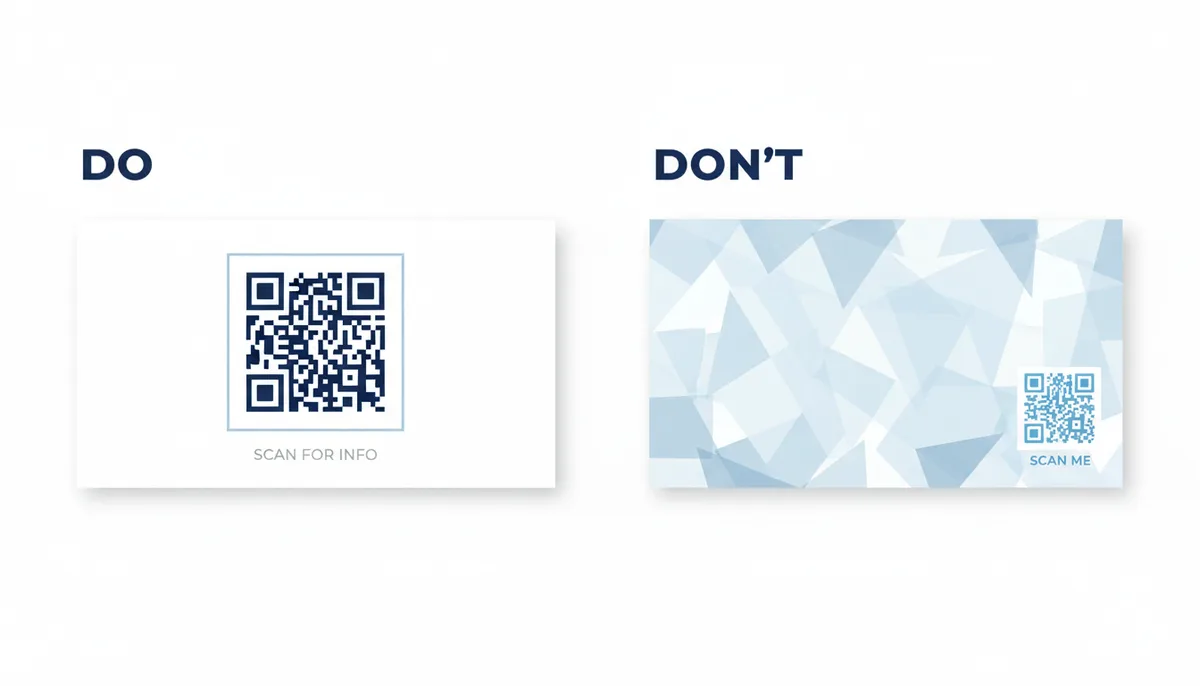
- Quiet Zone: Leave a blank margin (quiet zone) of at least 0.12 inches (3mm) around the entire code. No text, logos, or patterns inside this area—scanners need empty space to focus.
- Contrast: Use a dark code module color on a light, non-glossy background. Inverted codes (light modules on dark background) or glossy finishes cause glare, which breaks scanning. Avoid placing the code over busy patterns like stripes or gradients.
- Vector Formats: Always use SVG or EPS for printing. Raster formats like PNG get pixelated when scaled to fit the card, even if they look good on screen. These vector formats work with any print size, from small card codes to large poster displays.
How to Thoroughly Test Your QR Code Before Printing
You don’t want to print 500 cards with a code that won’t scan. Test it step by step:
- Test on native camera apps first: Use the default camera on an iPhone and an Android device. Third-party scanners can have quirks, so native apps are the most reliable.
- Verify all fields: After scanning, check every entry in the contact that pops up. Make sure phone numbers have the correct country code, links work, and there are no typos.
- Test a printed proof: Print a single test card with your code, then scan it from the actual paper. Glossy cardstock or matte finishes can affect scanning—what looks fine on your computer may not work on real paper. This step catches issues you’d miss testing digital files.
Troubleshooting: Why Isn’t My vCard QR Code Scanning?
If your code fails to scan, it’s almost always one of these common issues, with a quick fix:
- Too small: Increase the size to at least 1x1 inch. If you can’t make it that big on your card, use a dynamic code—its simpler pattern scans better at smaller sizes.
- Low contrast: Switch to a dark module color on light background. Avoid inverted codes or shiny finishes.
- No quiet zone: Add empty space around the code, even if it means shifting it slightly on the card.
- Logo covering too much: Remove or shrink the logo, or use a higher error correction level (most generators let you set ECL to L, M, Q, or H—H allows up to 30% of the code to be obscured).
- Too much data: If your static code has many fields, the pattern becomes dense. Switch to dynamic to keep the pattern simple, or trim extra fields from your vCard.
The Hidden Role of Error Correction Levels in vCard QR Code Reliability
Most business card creators overlook Error Correction Levels (ECL), but this setting directly impacts how well your vCard QR code works in real-world conditions. ECL defines how much of the code’s pattern can be damaged, obscured, or smudged before it becomes unreadable, with four standard levels: Level L (7% recoverable data), M (15%), Q (25%), and H (30%). For vCard codes, this is not just a technical detail—it’s the difference between a code that scans after being crumpled in a pocket and one that fails at a trade show.
Higher ECL increases damage tolerance, but it can also make the QR pattern denser for the same amount of data, which may require a slightly larger size to scan reliably. For static codes (where data is embedded directly into the pattern), this trade-off is more noticeable: adding multiple fields and using a high ECL can result in a code that’s too dense to scan when crammed into a 1-inch business card. For dynamic codes, the underlying data is stored on a short external URL, so ECL has less impact on pattern density—though higher levels still add a layer of protection against minor printing issues like slight stretching or paper creases.
Match your ECL to how your cards are used: use Level M for standard business cards that sit on desks or are handed out in low-traffic settings. Use Level Q if you add a logo to your code, or if your cards will be carried in wallets or exposed to minor wear. For events like conferences where cards are crumpled, rubbed, or stacked, Level H offers the best protection without requiring a larger card size. Always test any code after adjusting ECL—even the right level won’t fix a code that’s too small or has poor contrast.
Worked Example: Building a vCard QR Code for a Freelance Tech Designer
Meet Lila, a freelance brand designer focused on SaaS startups. She needed a vCard QR code for business cards she was printing for her upcoming launch, and she followed a strategic process that’s easy to replicate. First, she mapped out which fields added value, not just what she had: she skipped home address, fax, and personal social media (like Instagram, where she posts art, not work) and stuck to 6 core fields: Full Name (Lila Marquez), Job Title (Brand Designer for SaaS Startups), Company (Lila Design Co.), Work Email (lila@liladesign.co), Mobile (+1-310-555-7890), and two links: her portfolio (liladesign.co/portfolio) and LinkedIn (linkedin.com/in/lilamarquez).
Next, she chose dynamic over static. Her reasoning: she might add a Behance link later or change her email if she switches platforms, so updating the code without reprinting cards was critical. She picked QR Code Machine for its dynamic features, since it’s aligned with the site’s tools. For design, she added her minimalist logo (a small “LM” monogram) centered in the code—she checked that the logo covered only 12% of the pattern, well under the 30% error correction limit, so no issues with scanning. She set ECL Q, since her cards were going to be handed out at 3 different tech conferences, where wear and tear was guaranteed.
When she tested the code, she noticed a problem: adding the two links made the static (if she’d chosen it) code too dense for her 1-inch card size. But with dynamic, the pattern stayed simple—only the short URL from the generator was encoded, not the full link text. She tested it on both an iPhone 15 and Google Pixel 8, and every field filled correctly: the portfolio link opened directly, the LinkedIn profile loaded immediately, and the mobile number had the correct US country code. She saved the code as an SVG for printing, then ordered 1,000 cards for $80, knowing she could update the contact info anytime without reprinting.
Real-World Pitfalls of Static vs Dynamic vCard QR Codes (Beyond the Checklist)
Static and dynamic codes differ in more ways than editability alone—their real-world risks align with how you plan to use them. Static codes embed contact data directly into the QR pattern, so any change to your contact info (like a new email or phone number) means you have to reprint every card you’ve already produced. This can add unplanned costs or delays if you update your role or provider details after printing.
Dynamic codes rely on an external generator to host the contact data linked to your QR pattern. The key risk here is depending on the generator’s reliability: if the service experiences hosting issues or your subscription lapses, the code will stop working. Choosing a reputable generator with consistent uptime and flexible renewal terms mitigates this, but it’s still a factor to consider for long-term card use.
Printing conditions affect both code types, but their sensitivity varies. Any code—static or dynamic—can fail if it’s too small, has low contrast, or is distorted during cutting. However, dynamic codes have simpler patterns (since they only need to encode a short URL) so they are more resilient to minor stretching or wear than static codes with dense, data-heavy patterns. For this reason, dynamic codes are often more reliable for printed materials that will be handled frequently.
vCard QR Codes vs. Alternatives: When to Pick This Method Over Others
Many people assume digital business card apps (like HiHello or Haystack) are better than vCard QR codes, but that’s not always true. Let’s compare: digital business cards require the recipient to download an app, create an account, and then scan the code to save the contact. That’s friction—most busy professionals won’t take the time, especially if they’re in a rush after a meeting or at a conference. vCard QR codes work on any smartphone, no app required: scan the camera, tap “Add Contact,” done. That’s a major win for conversion.
LinkedIn QR codes are another alternative, but they only save the LinkedIn profile, not your full contact info. If someone scans a LinkedIn code, they get directed to your profile, but they still have to manually save your phone number or email—something most people won’t do. vCard codes pre-fill every field, so the contact is saved in their address book in one step. SMS links let you send a text, but that’s a one-way message, not a saved contact. Email links do the same—you have to type a message, not save info.
Cost is another factor: digital business card apps cost $10-$20 per month per user, while a dynamic vCard code from a reputable generator is $5-$15 per month for unlimited scans, or even free for basic use. For small businesses or freelancers, that’s a big difference. Edge cases matter too: if you’re in a country with less reliable app stores, vCard codes are universal. If you need to share non-contact data (like a menu or event details), other QR codes work, but for business cards, vCard is the most reliable, lowest-friction option for saving contacts.
FAQ
Can I put my picture in a vCard QR code?
Yes, but only with a dynamic QR code. Static codes can’t embed image data reliably because it takes up too much space and makes the pattern too dense. Dynamic codes work by linking to a hosted file, so you can add a link to your photo in the dynamic vCard, and the code will pull it in when scanned.Do vCard QR codes expire?
Static vCard QR codes never expire—they’re printed directly into the code, so as long as the card exists, the code works. Dynamic codes stop working if the subscription for the generator hosting the link lapses, but most paid plans let you renew and keep the code active.How much information can a vCard QR code hold?
A standard QR code can hold up to 4,296 alphanumeric characters total. For a vCard, that’s enough for most basic fields, but adding extra data like multiple phone numbers or long notes will make the pattern denser. Static codes with a lot of data are harder to scan, so dynamic codes are better for detailed contact info.Can I track how many people scan my business card's QR code?
Yes, only with a dynamic QR code. Most generators like QR Code Machine track scan counts, plus details like the device used, time of scan, and location. This data helps you see how many people actually engage with your cards at events or meetings.What's the difference between a vCard and a MeCard?
MeCard is a simpler, older format from Japan, designed for smaller devices. It has fewer fields than vCard—for example, it doesn’t support separate job title and company fields, which are critical for business cards. vCard is the global standard (defined by RFC 6350) and supports all the professional fields you need, so it’s the clear choice for business use.Does adding a logo to my QR code make it less reliable?
It can if you place it incorrectly. QR codes have built-in error correction that allows up to 30% of the pattern to be obscured, so most generators automatically position the logo within this safe limit. Always test the final code after adding a logo—some logos are too large, or their placement covers critical data spots, even if they look okay in the generator preview.Additional resources:
- Basics and history of the QR code: Denso Wave — QR Code.
Sources
- Internet Engineering Task Force (IETF) — The technical specification for the vCard format (RFC 6350), which defines the fields that can be encoded.
- International Organization for Standardization (ISO) — The official standard for QR code technology (ISO/IEC 18004), which governs its structure and error correction levels.
- Denso Wave Incorporated — Information from the original inventor of the QR code, confirming its basic principles and capabilities.
- Apple Developer Documentation — Technical details on how iOS handles contact data and recognizes formats like vCard when scanned by the native camera app.
- Android Developers — Technical details on how Android's OS and Contacts app parse and import vCard data from QR codes and other sources.
- Adobe Creative Cloud — Best practices for preparing vector graphics (like SVG or EPS files) for professional printing, ensuring sharpness and quality.