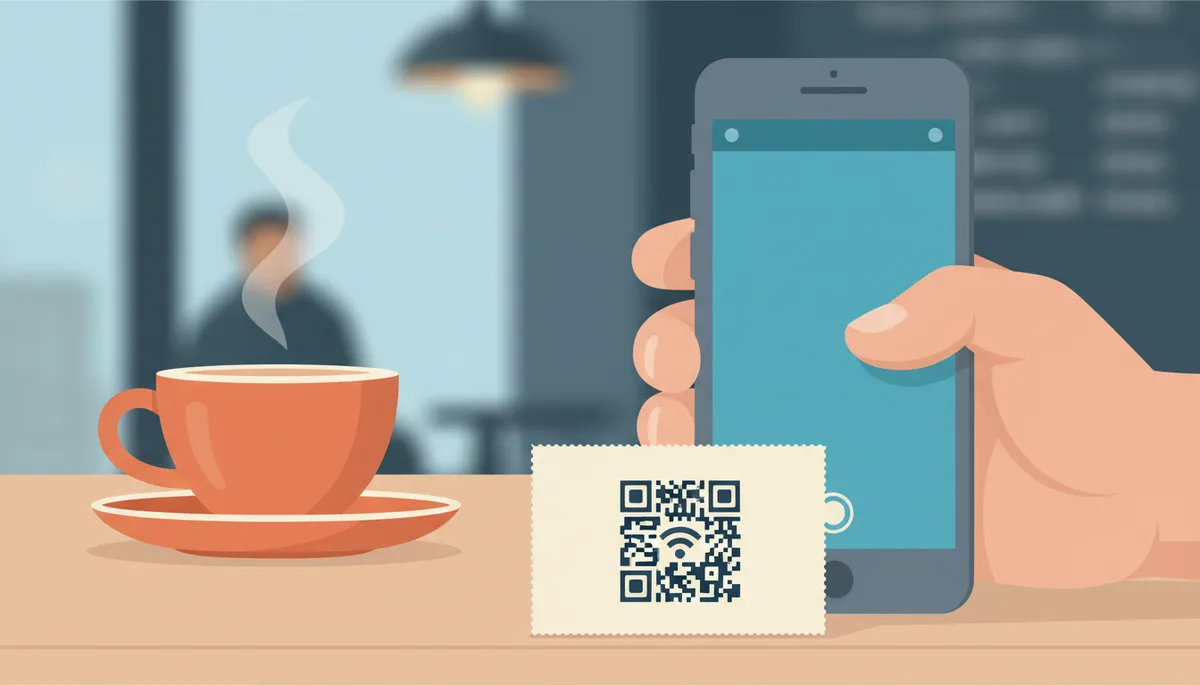
A customer walks into your cafe, sits down, and immediately asks for the WiFi password. Your staff stops what they are doing to read a handwritten note or, worse, tells the customer to check the bottom of a receipt. This is friction. It is a small, repetitive interruption that costs time and adds mental load to both your employees and your guests. You could print the password on every table, but then you've turned a complex, high-security string of characters into a public piece of text that anyone walking past your window can photograph.
The better way is to use a WiFi QR code. It turns a tedious manual process into a single tap. Instead of squinting at a tiny font or typing "Guest_WiFi_2024_Summer!" into a mobile device, a user simply points their camera at a sign and connects. It's faster, it looks more professional, and it allows you to keep your actual password a secret from the human eye.
Why Use a QR Code for Your Guest WiFi?
When you manually share a password, you invite error. A single typo—a lowercase "l" instead of a capital "I", or a missing exclamation point—results in a frustrated customer and a distracted server. A QR code removes the human element from the input process. The data is transferred digitally and accurately every single time.
From a security standpoint, QR codes allow you to use long, complex, high-entropy passwords. Most people choose simple passwords like "Coffee123" because they know guests have to type them. If you use a QR code, you can use a 24-character string of random letters and numbers. Your guests won't mind because they don't have to type it, and your network becomes significantly harder to breach through brute-force attacks.
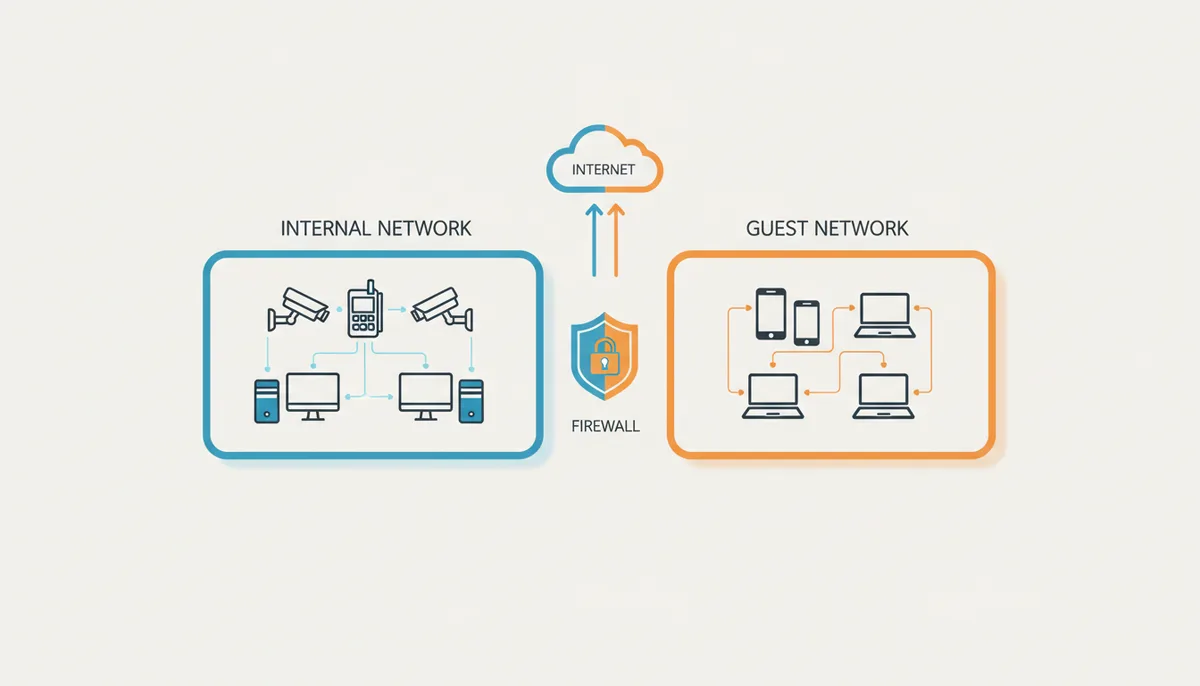
It is important to understand a key security distinction: a QR code does not make the password "invisible." The credentials are encoded in plain text within the pattern. Anyone with a standard QR scanning app can decode the image and read your password instantly. This is why you should never use a QR code to share access to your primary business network. Instead, use the code to connect guests to a dedicated, isolated guest network. This ensures that even if a guest extracts the password, they remain walled off from your sensitive internal systems and POS terminals.
Finally, there is the matter of brand perception. A business that provides a sleek, branded QR code on a table tent or a framed sign feels modern and prepared. It signals that you have thought about the user experience down to the smallest technical detail.
How a WiFi QR Code Works: From Scan to Connection
A WiFi QR code isn't magic; it is a combination of a standardized visual format and a specific data convention. First, the physical pattern of squares follows the ISO/IEC 18004 standard for QR code symbols, which ensures that any camera can recognize the grid. Second, the actual information hidden inside that grid follows a widely used WIFI: schema recognized by mobile scanning libraries like ZXing.
The payload looks like this:
WIFI:S:MyNetworkName;T:WPA;P:SecretPassword123;;
Let's break down what those characters actually do:
- WIFI: This prefix tells the smartphone's operating system, "Don't treat this as a URL or plain text; treat this as network credentials."
- S: This stands for the SSID (Service Set Identifier), which is the technical name of your WiFi network.
- T: This defines the encryption type, such as WPA, WPA2, or WEP. Most modern routers use WPA2 or WPA3.
- P: This is the Network Security Key, or your password.
- ;;: This signals the end of the data string.
When a user points their iPhone or Android device at the code, the camera app parses this string. The phone recognizes the "WIFI:" identifier and triggers a system-level prompt. The user sees a message saying, "Join 'MyNetworkName' network?" They tap "Join," and the phone handles the handshake with the router. While the prompt may hide the password from the user's immediate view to prevent casual shoulder-surfing, the device is simply automating the entry of the text contained within the code.
Step-by-Step: Creating Your WiFi QR Code in 60 Seconds
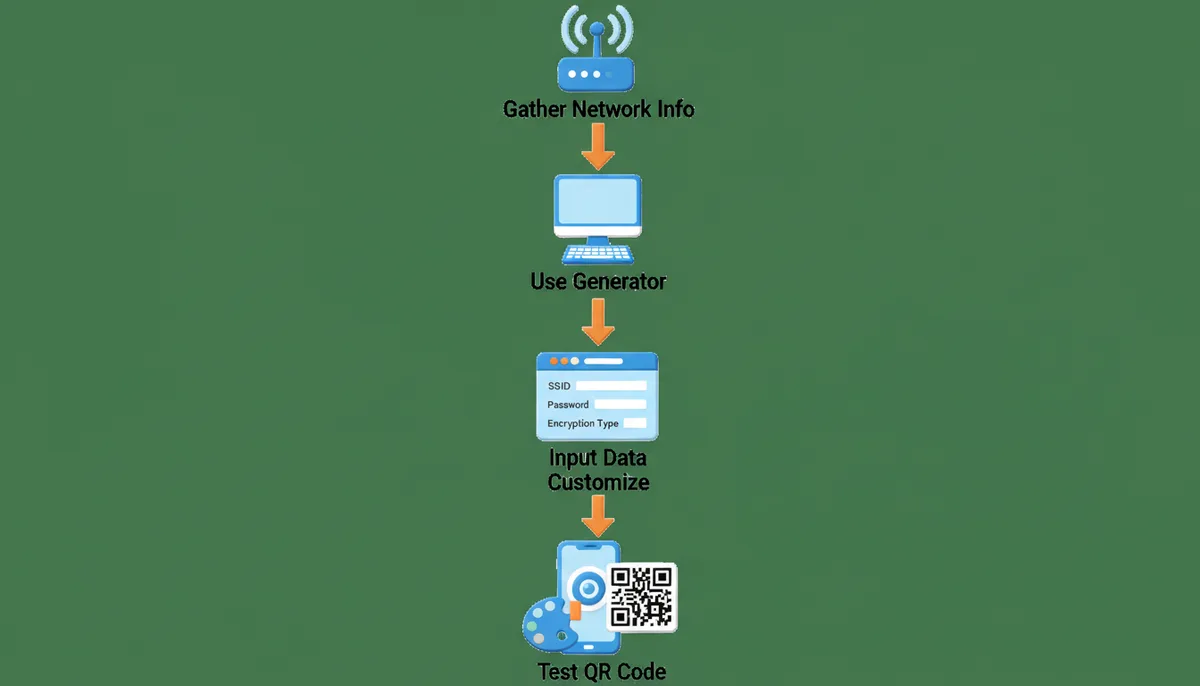
Before you open any generator, you must gather your network's "source of truth." Do not guess these details. If the SSID is case-sensitive (which it almost always is) and you enter it incorrectly, the QR code will fail.
- Locate your credentials: Log into your router's admin panel or look at the physical sticker on the router itself. You need three specific pieces of information:
- SSID: The exact name of the network.
- Password: The exact security key.
- Encryption Type: Usually WPA2 or WPA3.
- Use a generator: Navigate to the WiFi section of the QR Code Machine.
- Input the data: Type your SSID into the network name field, enter your password, and select your encryption type from the dropdown menu.
- Customize: If you want to embed a logo or change the color to match your brand, do so now. High contrast is your friend here; dark pixels on a light background work best.
- Generate and Download: Once satisfied, generate the code.
A critical step many people skip is testing. Before you print fifty copies for your restaurant, scan the code with both an iPhone and an Android device. If it works on both, you are ready to deploy.
When downloading, choose your format wisely. If you are designing a high-quality printed sign, download the SVG format. SVG is a vector format, meaning you can scale it to the size of a billboard without it becoming blurry or pixelated. If you are simply putting the code on a digital menu or a website, a high-resolution PNG is sufficient.
Static vs. Dynamic QR Codes for WiFi: A Business Decision
Choosing between a static and a dynamic QR code is the difference between a one-time setup and a long-term management strategy. This decision depends entirely on how often you expect your network settings to change.
A Static QR Code encodes the SSID, encryption type, and password directly into the pattern of the squares. The data is "baked in." If you decide to change your WiFi password next month for security reasons, your printed QR code becomes a useless piece of paper. You will have to generate a new code and reprint all your signage. This is acceptable for a home network, but it is a headache for a business.
A Dynamic QR Code works differently. Instead of encoding the credentials directly, it encodes a unique URL. When a user scans the code, they are directed to a landing page. This page can host your WiFi instructions, a digital menu, or a "Terms of Service" agreement. While this approach is excellent for marketing and analytics, it does not always trigger the "one-tap" native WiFi joining prompt on all devices, as the phone sees a URL rather than a direct WIFI command. You would use this if your goal is to drive guests to a specific web destination before they connect.
| Feature | Static QR Code | Dynamic QR Code |
|---|---|---|
| Direct WiFi Joining | Yes (Native prompt) | Requires landing page step |
| Updatable? | No (Must reprint) | Yes (Change URL destination) |
| Scan Analytics | None | Tracks scan counts & time |
| Initial Cost | Free/Low | Subscription/Premium |
| Best Use Case | Home/Personal use | Marketing & Brand Engagement |
Best Practices for Displaying Your WiFi QR Code
Even a perfect QR code will fail if it is poorly displayed. If a customer has to stand on one leg or tilt their phone at a 45-degree angle to get a scan, they won't do it. They will just ask your staff for the password instead.
Placement: Put the code where people naturally linger. Table tents in cafes, small acrylic stands at hotel reception desks, or even a framed poster near the entrance are ideal. Avoid placing them behind glass or in high-glare areas, as reflections can prevent the camera from resolving the pattern.
Size and Margins: Do not make the code too small. A minimum size of 1 x 1 inch (2.5 x 2.5 cm) is the baseline for most smartphones. Furthermore, always leave a "quiet zone"—a white border around the code. If the pattern of the QR code touches the edge of a design or a colored background, the scanner may fail to recognize where the code begins.
Visual Clarity: Use high-contrast colors. A black code on a white background is the gold standard. While you can use brand colors, avoid light yellow or pastel shades, which lack the contrast necessary for quick scanning in low light.
The Manual Fallback: Always print the SSID (network name) in plain text near the code. If a guest has an older device or a hardware issue, they can still connect manually by typing the name you've provided.
Critical Security: Isolating Your Guest Network
The most common mistake businesses make is sharing their primary network. If your Point-of-Sale (POS) system, your office computers, and your security cameras are all on the same network that your guests are using, you are vulnerable. A malicious user could potentially intercept traffic or access sensitive business data.
To prevent this, you must use a Guest Network. Most modern routers and enterprise Access Points (APs) have a feature that allows you to create a secondary SSID specifically for visitors. This guest network is "sandboxed" or firewalled, meaning guests can access the internet, but they cannot see or communicate with any other devices on your local network.
When setting this up, ensure you use WPA2 or WPA3 encryption. Since the QR code makes it easy to use a complex password, there is no reason to settle for a simple one. A strong, long password on an isolated guest network provides the best balance of user convenience and enterprise-grade security.
Troubleshooting: When the QR Code Won't Connect
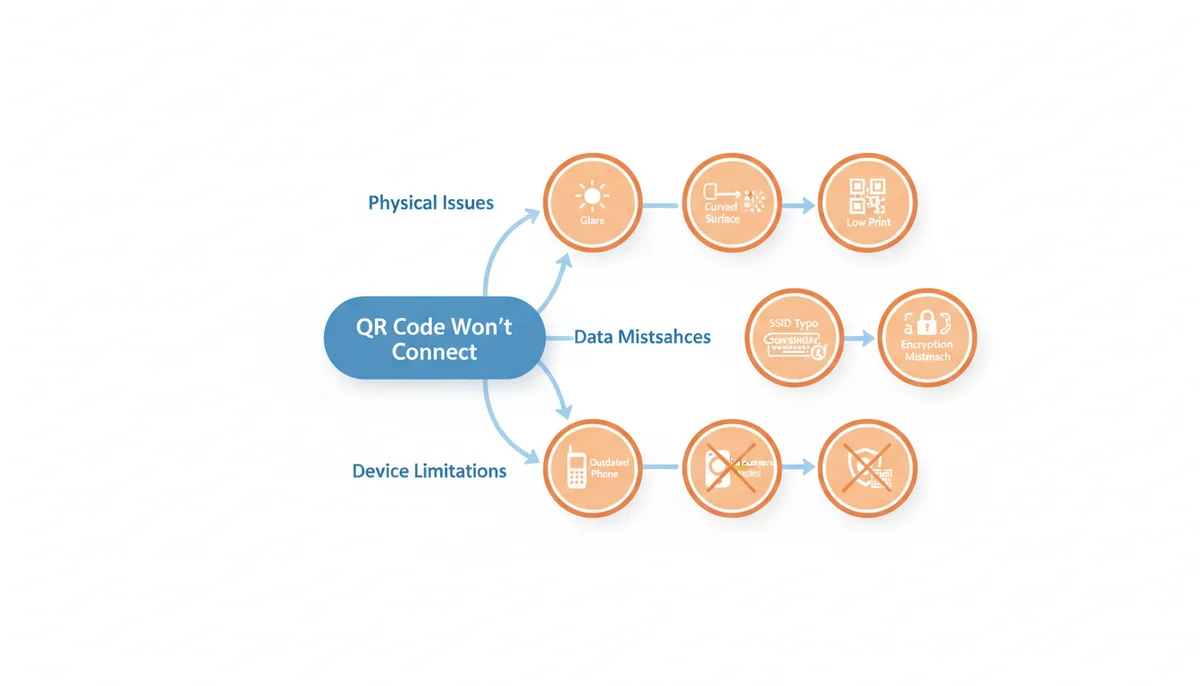
When a scan fails, the cause is usually one of three things: physical interference, incorrect data, or device limitations. Use this checklist to diagnose the issue.
1. Physical Scanning Issues: If the camera won't even "see" the code, check the environment. Is there a glare from a window? Is the code printed on a curved surface like a coffee cup, which distorts the pattern? Is the print quality too low, causing the edges of the squares to bleed together? If the code is too small or too blurry, the camera won't be able to resolve the data.
2. Data Mismatches: If the phone scans the code but fails to connect, the data inside the code is likely wrong. This is the most common culprit. Check for:
- SSID Typos: Did you include a trailing space at the end of the network name?
- Case Sensitivity: "MyWiFi" is not the same as "mywifi".
- Encryption Mismatch: If your router is set to WPA3 but you generated the code as WPA2, the handshake will fail.
3. Device-Specific Issues: Modern iPhones and Androids handle WiFi QR codes natively. However, older devices or certain budget Android models might require a dedicated scanning app or Google Lens to interpret the "WIFI:" prefix. If a guest says it isn't working, ask them to try a different scanning method or a different phone.
Connecting Different Devices: A Guide for iOS, Android, and Laptops
While the experience is largely seamless, different hardware handles these codes in slightly different ways. Understanding these nuances helps when assisting customers.
| Operating System | Native Scanning? | How to Connect |
|---|---|---|
| iOS (iPhone/iPad) | Yes | Open Camera app → Tap "Join Network" pop-up. |
| Android (9+) | Yes | Open Camera app or Google Lens → Tap connection prompt. |
| Windows 11 | No | Requires third-party QR app or manual entry. |
| macOS | No | Requires third-party app or manual entry. |
For mobile users, the process is almost entirely automatic. For laptop users, however, the QR code is primarily a way to view the credentials. Most laptops do not have a built-in way to "scan to connect" via the webcam. In these cases, the user will likely need to manually enter the SSID and password that you have provided in your printed fallback text.
The Anatomy of a Scan: A Deep Dive into the Data Payload
To understand why a WiFi QR code occasionally fails, you have to look past the black and white squares and look at the raw data payload. When a scanner reads a QR code, it isn't "seeing" a WiFi network; it is performing an optical character recognition task on a string of text. This string must adhere to a strict syntax defined by the industry to be interpreted correctly by the mobile operating system's network stack.
The structure is a semicolon-delimited key-value pair system. If you were to look at the raw data of a high-quality code generated for a network named "Skyline_Guest" with the password "BlueSky#2024" using WPA2 encryption, the internal string would look exactly like this:
WIFI:S:Skyline_Guest;T:WPA;P:BlueSky#2024;;
Each component serves a mechanical purpose. The S: tag identifies the Service Set Identifier. The T: tag identifies the security protocol. The P: tag identifies the passphrase. The double semicolon at the end is the "end of file" marker that tells the phone's parser to stop reading. If a single character is misplaced—for instance, if a generator mistakenly uses a colon instead of a semicolon after the password—the phone will treat the entire thing as a piece of random text or a broken URL. The user will see the text on their screen, but the "Join Network" prompt will never appear.
This mechanism also dictates how special characters are handled. Characters like semicolons, colons, or even spaces within your SSID or password can create "collision" errors. If your network name is Guest;WiFi, the parser might see that middle semicolon and think the SSID section has ended prematurely, looking for the password in a place where it doesn't exist. Professional-grade generators handle this through "escaping" these characters, but if you are building a string manually or using a low-quality tool, these invisible syntax errors are the most common cause of a "dead" QR code. This is why you should always use a dedicated tool like QR Code Machine, which automates the escaping process to ensure the payload is mathematically sound before it is converted into the visual matrix.
The "Broken Link" Scenario: Real-World Failures in Retail and Hospitality
In a controlled office environment, a WiFi QR code almost always works. In the "wild"—a busy restaurant, a dimly lit bar, or a windy outdoor patio—the physics of the environment frequently break the digital connection. Understanding these failure modes allows you to design a deployment that actually survives the first week of operation.
The most frequent failure is "Material Interference." Many businesses attempt to save money by printing QR codes on cheap, glossy paper and then laminating them. While this protects the paper, the lamination creates a high-specular surface. When a customer holds their phone up, the overhead lights or sunlight create a bright "hot spot" of reflection directly over the QR pattern. The camera sensor cannot resolve the contrast between the black modules and the white background because the light is bouncing directly into the lens. To avoid this, use matte-finish materials. If you must use a frame, ensure it is positioned away from direct light sources.
A second, more subtle failure is "Geometric Distortion." If you place a QR code on a curved surface—such as a plastic menu cover or a tapered coffee cup—the squares of the matrix are no longer perfect squares; they become trapezoids or rounded shapes. While the ISO/IEC 18004 standard includes error correction (which allows a code to be read even if part of it is obscured), it is not designed to handle significant perspective warping. If the distortion is too high, the phone's software will fail to identify the "finder patterns"—the three large squares in the corners that tell the camera how to orient itself.
Finally, there is the "Scale vs. Resolution" trap. A common mistake is printing a very small QR code on a high-resolution, busy graphic. If the printed squares (the "modules") are smaller than the physical pixel density of the user's camera, or if the printer's ink bleeds slightly (a common issue with thermal receipt printers), the edges of the squares become fuzzy. This loss of edge definition makes it impossible for the scanner to distinguish between a "1" and a "0" in the data stream. For any professional deployment, always test your print at the exact intended scale. If you cannot scan it comfortably with your own phone from a natural sitting position, your customers won't be able to either.
Comparing the Alternatives: QR Codes vs. Captive Portals vs. Manual Entry
A WiFi QR code is part of a broader spectrum of guest connectivity methods. Deciding which to use depends on your budget, your technical expertise, and the level of control you want over the user experience.
Manual Entry is the baseline. It is free and requires zero setup, but it is the highest-friction method. It is prone to human error and creates a constant stream of "What's the password?" questions for your staff. You should only use this as a fallback option, printed in small text beneath your QR code.
Captive Portals are what you see in hotels or airports. When you connect to the WiFi, a browser window automatically pops up asking for an email address, a room number, or an agreement to "Terms of Service." While this is excellent for data collection and marketing, it is significantly more complex to implement. It requires professional-grade networking hardware (like Ubiquiti, Cisco, or Aruba) and often a dedicated software subscription to manage the landing pages. Use a captive portal if your primary goal is gathering customer data; use a QR code if your primary goal is pure, frictionless speed.
Open Networks (No Password) are the simplest but the most dangerous. They require zero effort from the guest, but they offer zero security. Because there is no encryption, anyone within range can sniff the traffic of other users on the network. Furthermore, many modern devices are hesitant to join unencrypted networks, often triggering "Unsecured Network" warnings that can scare away privacy-conscious guests. The WiFi QR code provides the perfect middle ground: it gives the ease of an open network with the security of a WPA2/WPA3 encrypted connection.
To decide, use this rule of thumb: If you need to collect marketing data, go with a Captive Portal. If you want to provide high-speed, secure access with minimal staff interruption, go with a Dynamic WiFi QR code. If you are a home user, a Static QR code is perfectly sufficient.
Cost and Effort: The ROI of Automated Connectivity
When calculating the cost of implementing a WiFi QR code system, you must look beyond the price of the generator and consider the "Total Cost of Ownership" (TCO) and the return on investment (ROI) in terms of staff hours.
For a small business, the initial effort is minimal—roughly 15 minutes of setup time. The direct cost is either free (for a static code) or a small monthly subscription (for a dynamic code). However, the real cost calculation should focus on the "cost per interruption." If a server in a busy cafe spends just 30 seconds per customer explaining the WiFi password or fixing a typo, and they handle 100 customers a day, that is 50 minutes of lost productivity daily. Over a month, that equates to roughly 25 hours of labor spent on a task that could have been automated for the price of a single cup of coffee.
In a larger enterprise, such as a hotel or a multi-location retail chain, the effort shifts toward "Management Scalability." If you use static QR codes and you have 50 locations, a single password change across the company becomes a massive logistical project involving printing, shipping, and physical installation at every site. The "cost" here is not just the paper and ink, but the man-hours required for deployment. In this scenario, a Dynamic QR code pays for itself almost immediately. The ability to push a password update to all 50 locations via a central dashboard reduces the labor cost of a security update from hundreds of hours to mere seconds.
Consider the "Security Risk Cost" as well. The cost of a data breach on an unsecured or poorly managed guest network can be catastrophic, involving legal fees and reputational damage. By investing in a professional QR code strategy that encourages the use of isolated guest networks and complex, non-typed passwords, you are essentially purchasing an inexpensive form of insurance against common network vulnerabilities.
Frequently Asked Questions
Is my WiFi password visible to the person scanning the code?
On modern iPhones and Android devices, the answer is no. The operating system identifies the network credentials and presents a prompt asking the user to "Join" or "Connect." The actual password string is handled in the background and is not displayed to the user during this process.
Can I create a QR code for a hidden WiFi network?
Yes. The standard WiFi QR code format includes a specific parameter for hidden SSIDs. When generating your code, ensure you select the option for a hidden network. This tells the user's device to actively search for that specific name rather than waiting to see it broadcasted.
What happens if I change my WiFi password?
This depends on the type of code you created. If you used a static QR code, the password is part of the image itself; you must generate a new code and replace your printed signs. If you used a dynamic QR code, you can simply update the password in your management dashboard, and all existing printed codes will immediately work with the new credentials.
Is it safe to post a WiFi QR code publicly?
It is safe only if you have properly isolated your network. Never point a public QR code to your primary business network. Always ensure the code connects guests to a dedicated, firewalled Guest Network that has no access to your internal systems or data.
Do WiFi QR codes expire?
Static QR codes never expire; they will work as long as the network settings remain the same. Dynamic QR codes do not expire by default, but if you are using a managed service, you may have the option to set an expiration date or manually disable a code if you need to temporarily suspend WiFi access.
Can I see who has connected to my WiFi from the QR code?
If you use a dynamic QR code, you can see analytics such as how many times the code was scanned and what types of devices were used. However, this does not give you access to the user's personal information or their activity on the network. Tracking individual user activity is a function of your router and network management software, not the QR code itself.
Sources
- Wi-Fi Alliance — Definitions and security standards for WPA2 and WPA3 encryption, reinforcing the recommendation to use these over older protocols.
- International Organization for Standardization (ISO) — The claim that QR codes are an international standard (ISO/IEC 18004), which ensures their reliability and scannability across devices.
- Apple Support — The procedure for how iPhones and iPads natively scan QR codes using the built-in Camera app.
- ZXing Project on GitHub — The technical data format for WiFi QR codes (`WIFI:S:...`), as this open-source project was foundational in establishing the de facto standard used by all generators and scanners.